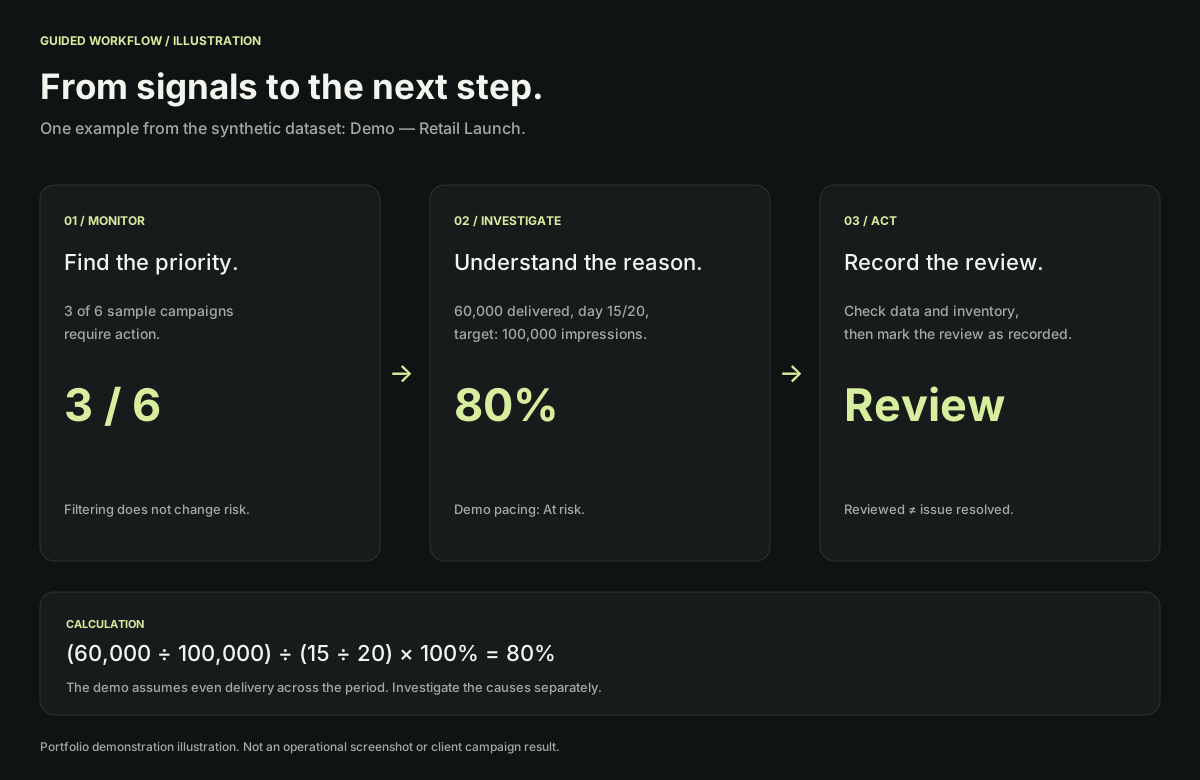
Narrow the focus.
Choose “Needs action” to filter campaigns that are behind schedule or have no delivery in the demo dataset.
TRY THE THINKING
Select a campaign, inspect its pacing, then change the elapsed days to see how time affects its priority. The simplified demo rules are explained on screen.
Choose a starting scenario
Interactive demo · synthetic data · fixed snapshot: Oct 20, 2026
Six synthetic campaigns for exploring filters, pacing, and reviews. No company or client data is included.
| Campaign / channel | Delivery / target | Pacing | Status | Review |
|---|
Try another name or channel, or clear the search filters.
Pacing compares actual delivery with the target proportional to elapsed days. It is a signal to investigate, not a diagnosis of the cause.
Demo ready. Select a campaign to inspect the calculation.
These thresholds are specific to this demo, not the original production system. The model assumes even delivery throughout the campaign.
Pacing = (delivered ÷ target) ÷ (elapsed days ÷ total days) × 100%
Simulations and review flags are stored only in page memory. Resetting or reloading restores the initial data. CSV exports include all six campaigns and their simulation and review state at export time; filters do not limit the export.
This demo is not connected to advertising accounts, APIs, or servers. No client data is uploaded or stored.
This portfolio demo was built with synthetic data and a simplified scope. Its interface and pacing thresholds do not copy production rules. It contains no client data, advertising platform connections, or live updates.
04 / GUIDED WALKTHROUGH
Choose “Needs action” to filter campaigns that are behind schedule or have no delivery in the demo dataset.
Open a campaign. Compare delivery, target, and elapsed time, then read the reasoning and suggested checks.
Change elapsed days to see the effect of the time assumption. Record a review without automatically changing campaign health status.